

A streaming app can have a huge content library, but if you cannot find what you want quickly, that library does not feel very useful.
That is why the user interface (UI) matters so much.
When researching Castle App APK, I found that many descriptions focus heavily on content availability and streaming features while giving much less attention to the actual interface. Yet for everyday users, the UI is often the first thing they experience after installation.
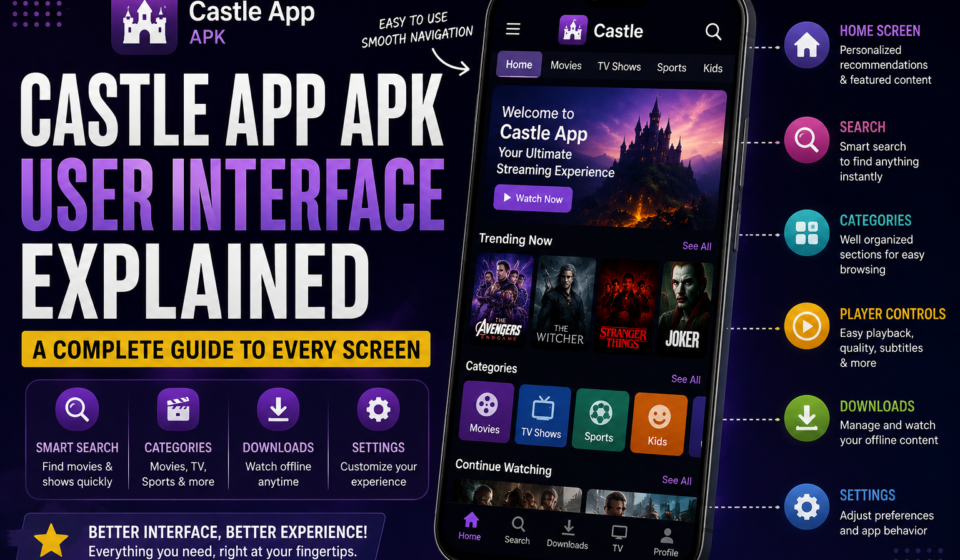
Castle-related sources describe the interface as simple and navigation-focused, with features such as search, categories, downloads, TV sections, and content recommendations. One current Castle site also describes a personalized home screen and a “Not interested” option in its newer release. However, the exact layout can vary by APK version, device, and release.
In this guide, I’ll break down the Castle App APK user interface, explain what the main sections are designed to do, discuss how navigation works, and look at why users sometimes see a different interface after installing another version.
I’ll also cover Castle App for Android, older releases, common UI problems, and a few practical tips that can make navigation less frustrating.
Important: APK versions available online may come from different sources and may not all be official or trustworthy. Always verify the source before installing an APK, and avoid modified files that make questionable claims.
What Is the Castle App APK User Interface?
The user interface is simply the visual part of the application that you interact with.
It includes things such as:
- Home screen
- Search bar
- Navigation menu
- Movie and TV categories
- Content cards
- Video player controls
- Subtitle options
- Download section
- Profile or settings area
- Playback controls
Think of the UI as the map of the application.
A good map does not need to explain every road at once. It simply helps you get where you want to go.
That is the approach Castle appears to take with its interface: keep the main navigation relatively straightforward and place frequently used actions where users can find them quickly. Castle-related documentation specifically describes a simple navigation structure with a “Find” search option, a Download section, and a TV area organized into categories.
The Castle App Home Screen
The home screen is usually the first major area users interact with.
Instead of thinking of it as just a list of movies, think of it as the application’s starting dashboard.
Depending on the version, the home screen may contain:
- Featured content
- Recently added titles
- Recommended content
- Popular movies or shows
- Categories
- Search access
- Navigation controls
A newer Castle release described online claims to use a more personalized home screen that adjusts recommendations according to viewing behavior and includes a “Not interested” control. It also describes regional trending content and faster home loading.
That is an interesting change because it moves the home page away from being just a static collection of posters.
Why the Home Screen Can Look Different
This is one of the first things I would explain to someone who says:
“My Castle app doesn’t look like the screenshots I found online.”
Don’t panic.
The screenshot may belong to another version.
Online Castle APK listings show multiple releases, including versions in the 1.9.x and 2.0.x ranges. Some sources also list newer releases.
So the interface can change because of:
- Different app versions
- Android device differences
- Screen size
- Android TV versus mobile
- Updated navigation
- Changed content categories
- Different release builds
This is why checking your version number is important before following an online UI tutorial.
Castle App Search Interface
One of the most important parts of a streaming application is search.
If you already know what you want to watch, scrolling through hundreds of posters is basically digital window shopping—with a little less exercise.
Castle-related sources describe a search or “Find” function designed to help users locate movies and shows directly.
How to Use Search More Effectively
If you’re looking for a particular title, I recommend starting with a short search phrase.
For example:
- Open the search or Find option.
- Enter the main title.
- Wait for the results.
- Check the matching posters.
- Select the correct title.
- Review the available playback options.
If the title doesn’t appear, try removing extra words.
For example, instead of searching:
“The Amazing New Movie 2026 Full HD”
try:
“Amazing New Movie”
The shorter search can sometimes make it easier to find relevant results.
Smart Search and Faster Discovery
Some Castle descriptions specifically promote a “smart search” function.
The important benefit isn’t the word “smart.”
The benefit is time.
A useful search system reduces the number of taps between opening the app and finding something interesting.
That becomes especially important when you’re using a phone with one hand or trying to find something quickly before your friends start asking, “Are we watching anything or not?”
Categories and Content Navigation
Search is useful when you know what you want.
Categories are useful when you don’t.
The Castle interface is described as organizing content into categories, while the TV area can include sections such as movies, sports, news, music, entertainment, business, and history.
Depending on the release, you may see categories based on:
- Genre
- Content type
- Language
- TV
- Movies
- Sports
- Regional content
Why Categories Matter
Imagine you don’t have a specific movie in mind.
You just know:
“I want something funny.”
Instead of searching for a title you don’t know, you can browse a comedy category or another relevant section.
This is one of the simplest examples of good information architecture: the interface helps you move from a broad idea to a specific choice.
Movie and TV Content Pages
After selecting a title, you generally move from browsing to the content details or playback stage.
A content page can provide information such as:
- Title
- Poster or thumbnail
- Description
- Genre
- Release information
- Available episodes
- Playback options
- Subtitle availability
The exact information depends on the version and content source.
This distinction is important because an APK interface isn’t necessarily responsible for every piece of content displayed inside it. Some information can come from external services or changing content sources.
The Video Player Interface
The video player is where the UI becomes especially important.
A complicated player can make simple tasks annoying.
Common controls can include:
- Play and pause
- Seek forward or backward
- Full-screen mode
- Volume
- Subtitle controls
- Quality selection
- Playback source options
Castle-related descriptions mention HD playback and subtitle functionality, although available resolutions and subtitle options can differ between releases and individual content sources.
Subtitle Controls
If subtitles are available, they can be particularly useful for:
- Foreign-language movies
- Accents that are difficult to understand
- Quiet viewing
- Language learning
- Watching without increasing volume
If subtitles don’t appear, don’t automatically assume that the entire app doesn’t support them.
The particular video source may not provide subtitle data.
Video Quality Controls
A higher resolution is not always better.
If your connection is struggling, reducing quality can sometimes provide a smoother viewing experience.
For example:
Strong Wi-Fi + large screen: higher quality may make sense.
Weak mobile connection: a lower quality may reduce buffering.
In my experience researching streaming interfaces, this is one of those tiny settings users often ignore until the video starts buffering at the exact moment the story becomes interesting.
Naturally, that is also the moment everyone in the room suddenly becomes a network engineer.
Download Section and Offline Interface
Some Castle versions describe a dedicated Download section and offline viewing functionality.
If your version supports downloads, the interface may provide a separate area for managing downloaded content.
This can be useful when:
- Traveling
- Internet access is unreliable
- You have limited data
- You want to prepare content before leaving home
However, offline downloads do not necessarily behave like ordinary video files.
A Reddit user reported that downloaded Castle content could be played offline inside the app but was not easily accessible through the phone’s normal Gallery interface.
That is an important distinction.
Downloaded inside an app does not always mean saved as a normal video file.
Navigation Menu and Settings
Another area users often overlook is the settings or navigation menu.
Depending on the version, this area may provide access to:
- App preferences
- Playback settings
- Language
- Subtitle preferences
- Downloads
- Theme settings
- Account/profile options
- App information
The exact menu names can change.
If you’re troubleshooting Castle, I recommend checking the settings before uninstalling and reinstalling the application.
Sometimes the problem isn’t the app itself.
It is simply one setting.
Castle App for Android: Mobile UI Explained
When using Castle App for Android, the interface is designed around a smaller touchscreen.
That means buttons need to be easy to tap and important actions should not be buried too deeply.
On a phone, the most important UI principles are:
- Simple navigation
- Readable text
- Touch-friendly buttons
- Easy search
- Clear content cards
- Accessible playback controls
Castle-related sources describe the interface as minimalist and designed for straightforward navigation.
Phone vs Larger Screens
A phone interface and Android TV interface don’t necessarily need to look identical.
A television interface is usually designed around remote-control navigation, while a phone interface is built around touch.
That means:
Phone: tap, swipe, scroll.
TV: directional buttons, select, back.
If you install an APK intended for a different device type, the interface may feel awkward even if the application technically opens.
Castle App Previous Versions and Interface Changes
Now we reach one of the most interesting areas: older versions.
The phrase Castle App Previous Versions is commonly searched by users who prefer an earlier interface or need compatibility with an older Android device.
Online listings show several older Castle builds, including releases such as v2.0.0, v1.9.9, v1.9.8, and v1.9.7.
Why Do People Prefer Previous Versions?
There are several possible reasons.
1. Familiar navigation
You already know where everything is.
2. Simpler interface
An older release may contain fewer visual elements.
3. Device compatibility
Some older phones may perform better with a lighter release.
4. Personal preference
Sometimes people simply don’t like redesigns.
And honestly, I understand this one.
We’ve all experienced an app update where the developers proudly announce a “beautiful new interface,” while we spend ten minutes looking for the button that used to be right there.
But Should You Use an Older Version?
Not automatically.
Older versions can miss:
- Bug fixes
- Security improvements
- Compatibility updates
- New features
- Performance improvements
One Castle version comparison source specifically notes that newer releases may add features such as improved filters, subtitle improvements, casting, and other interface changes, while older versions can retain simpler layouts.
So the best version isn’t necessarily the oldest or newest.
It is the version that is compatible, trustworthy, and suitable for your device and needs.
A Simple Way to Learn the Castle Interface
If you’re opening Castle for the first time, don’t try to understand every button immediately.
I recommend this five-minute exploration method.
Step 1: Start on Home
Look at the featured and recommended content.
Step 2: Find Search
Test the search function with a title you already know.
Step 3: Explore Categories
Check how movies, TV, sports, or other sections are organized in your version.
Step 4: Open a Content Page
Look at the description, playback options, and available controls.
Step 5: Explore Settings
Check subtitles, playback, downloads, language, and other available preferences.
That’s enough to understand most of the interface without turning the process into a university course.
Common Castle App UI Problems and Solutions
The Search Button Is Missing
You may be using a different version or device layout.
Check the navigation menu and app version first.
The Interface Looks Different From an Online Screenshot
This is usually a version difference.
Check the APK version before assuming something is wrong.
Downloads Are Difficult to Find
Look for a dedicated Downloads section or check the navigation menu.
Some versions handle offline content inside the application rather than exposing it through Android’s regular file browser.
The App Looks Slow
Before blaming the interface, check:
- Free storage
- Background apps
- Android version
- Network quality
- APK compatibility
A slow interface isn’t always caused by the design itself.
The Video Player Doesn’t Show Subtitles
Check whether subtitles are available for that particular video source.
Also look for a subtitle or CC button inside the player.
What I Would Look for When Evaluating the UI
If I were evaluating any streaming APK interface—not just Castle—I would judge it on five things.
1. Discoverability
Can I find important features without searching through menus?
2. Navigation
Can I move between sections quickly?
3. Readability
Are titles and controls easy to understand?
4. Consistency
Do buttons behave the way I expect?
5. Performance
Does the interface respond quickly on my device?
These five areas tell you much more about an app’s usability than flashy screenshots.
Quick Tips for a Better Castle App Experience
Here are the practical points I would keep in mind:
- Check your APK version before following online tutorials.
- Use search when you already know the title.
- Explore categories when you want something new.
- Check subtitle settings before assuming captions are unavailable.
- Adjust video quality according to your connection.
- Look in the Download section for offline content.
- Don’t assume an older interface is automatically better.
- Be careful with APK sources and modified packages.
- Keep Android security protections enabled.
- If a feature is missing, check whether your particular release supports it.
Frequently Asked Questions
Is Castle App APK easy to use?
The interface is generally described by Castle-related sources as simple and navigation-focused, with search and categorized content. However, the exact design can vary depending on the APK version and device.
Why does my Castle App interface look different?
The most likely explanation is that you’re using a different version from the one shown in an online guide or screenshot. Older and newer Castle releases can have different layouts, menus, and features.
Can I use a previous Castle App version?
Some older APK releases are available online, but installing an older version can involve compatibility and security considerations. Older software may also lack newer bug fixes and features. If your current version works properly, there may be little reason to downgrade.
Where can I find downloaded content?
If your particular version supports downloads, look for a Downloads section within the app. Offline content may be managed internally rather than appearing as a normal video in your Gallery.
Final Thoughts
The Castle App APK user interface is easier to understand once you stop looking at it as one giant screen and start thinking about it as a collection of smaller navigation areas.
The home screen helps you discover content. Search helps you find something specific. Categories help you browse. Content pages provide information. The video player handles playback. Downloads manage supported offline content. Settings give you control over the experience.
The biggest lesson is that version matters.
A feature shown in one Castle APK screenshot may not appear in another release. Older versions can have simpler layouts, while newer releases may introduce recommendation systems, updated navigation, improved search, or other interface changes.
I would also avoid choosing an APK simply because someone online calls it “the best version.” Check compatibility, source reliability, available features, and security first.
Ultimately, a good interface should disappear into the background. You shouldn’t have to think about where the search button is—you should be thinking about what you want to watch.
Have you used Castle App on Android? Which part of its interface do you find easiest—or most confusing? Share your experience in the comments.